you deleted an important email accidentally or a virus attack has resulted in data loss? If you thought that retrieving those important emails will not be possible, then dont get disheartened, you can easily recover your deleted, damaged or inaccessible emails. As we are all aware of the fact, that emails have become an integral part of our business lives and play a vital role in a significant amount of work that is carried out at office. There are important files and photos attached to them which are vital and if in case they get deleted, this might result in great loss. Email data becomes even more important if you are directly dealing with your clients and carrying out business deals through them.
Outlook PST file is the only copy of your emails, notes, contacts, calendars, archives, appointments, etc when you are not using Exchange Server account. Therefore email recovery is an important topic to be considered if a user deletes these useful items accidentally or intentionally. On the other hand, if Outlook is configured to utilize an Exchange account, administrator has the control to access all those deleted emails. Even in situations when users purge the emails, the administrator side can recover them through Exchange journaling and archiving. But the situation becomes critical when user is working on an account such as POP3. If the user deletes the PST email items permanently using Shift + Delete key or empties the Deleted Items folder, the solutions can be different; however email recovery is still possible.
Deleted items recovery from Outlook PST is possible. At times, when you dont have an updated backup to perform email recovery, a hex editor might work. These programs are usually available as freeware and allow you to manipulate the binary computer files and edit the raw file contents. So, you can easily use these tools to make required changes in any file, including corruption. Technique of recovering deleted PST items is started using Hex editor to corrupt the file and later repair it. But before, you do it, make sure you have a backup file for the same. If you have already compacted the PST and if the deleted item space has been occupied, then the process might fail. In order to perform email recovery using hex editor, follow the steps given below:
1.Open the PST file with a hex editor
2.Change the first eight bits of file 00 etc
3.Launch Outlook to view the PST file. Outlook will no longer recognize the file and state it as corrupt.
4.Access Scanpst.exe file to start Inbox Repair Tool and repair corrupt PST file
5.When you repair the corrupt PST, Scanpst.exe tool will recreate all the pointers and hence, the email items that you deleted get restored to their original location.
If you are not comfortable with this tip, then the only other option left is to use a third party Email Recovery software to recover deleted PST items. There are an array of email recovery utilities developed to scan affected PST to restore deleted emails, notes, calendars and other items.
Thursday, April 8, 2010

Wednesday, April 7, 2010
Students Speak Out on Benefits of Technology
Each year educators across the nation spend some part of their summer attending professional development workshops or college courses in an effort to bring the latest techniques and teaching methods to their classrooms. Technology is a tool that has become the topic of many professional seminars and something that teachers are learning to use and add to their academic toolbox. In an article addressing technology as methodology not just design, John Williams writes, "Students should perceive technology as a thoroughly integrated activity, not one which can be separated into content and process, or theory and practice."
The benefits of technology in education were examined in a 1996 report to the nation on Technology and Education, "Getting America's Students Ready for the 21st Century: Meeting the Technology Literacy Challenge", and the results were promising. Findings showed that there were numerous advantages including enhanced student achievement, advanced skills and problem solving opportunities, more comprehensive student assessment, increased student motivation, increased family involvement and instruction and experience in future job-related skills. Some other benefits cited were more individualized instruction and improved administration and management in schools.
After having written about technology in education here at Suite101.com and quoting from authorities in the field, I thought it might be interesting to hear what kids had to say. I took a survey in my computer applications class and had students anonymously submit their answers. I asked them to tell me what they thought were the benefits of technology in the classroom both for teachers and students. It's not surprising at what they had to say.
Hands down was the idea that technology makes learning easier and more fun. More than half of the students in class cited this as the number one benefit to education. I've never been a proponent of the theory that education should be a dog and pony show aimed at keeping students entertained and amused every second of the class period. However, technology integration, like other good teaching techniques, actively engages students in the learning process. Many students see school as an accepted ritual that one has to endure to move on to the next level - a place where educators are dispensers of knowledge and students are merely the vessels waiting to be filled. Learning should be interactive and involve problem solving, communication, and yes, development of new knowledge and products. When students are involved in the learning and participate in it by creating new information, they are more likely to view that experience as easy and fun.
The benefits of technology in education were examined in a 1996 report to the nation on Technology and Education, "Getting America's Students Ready for the 21st Century: Meeting the Technology Literacy Challenge", and the results were promising. Findings showed that there were numerous advantages including enhanced student achievement, advanced skills and problem solving opportunities, more comprehensive student assessment, increased student motivation, increased family involvement and instruction and experience in future job-related skills. Some other benefits cited were more individualized instruction and improved administration and management in schools.
After having written about technology in education here at Suite101.com and quoting from authorities in the field, I thought it might be interesting to hear what kids had to say. I took a survey in my computer applications class and had students anonymously submit their answers. I asked them to tell me what they thought were the benefits of technology in the classroom both for teachers and students. It's not surprising at what they had to say.
Hands down was the idea that technology makes learning easier and more fun. More than half of the students in class cited this as the number one benefit to education. I've never been a proponent of the theory that education should be a dog and pony show aimed at keeping students entertained and amused every second of the class period. However, technology integration, like other good teaching techniques, actively engages students in the learning process. Many students see school as an accepted ritual that one has to endure to move on to the next level - a place where educators are dispensers of knowledge and students are merely the vessels waiting to be filled. Learning should be interactive and involve problem solving, communication, and yes, development of new knowledge and products. When students are involved in the learning and participate in it by creating new information, they are more likely to view that experience as easy and fun.
Sunday, February 14, 2010
The Cloud Computing Revolution
The Web 2.0 revolution has gifted us with a lot of new concepts and cloud computing is one of them.
The term "Cloud Computing" comes from the use of a cloud image to represent the internet. We depend heavily on this 'cloud' for reliably sending and receiving data. There were data pipes, routers and servers and now there are services. Cloud computing encompasses the entire spectrum of delivering hosted services over the internet. These services are broadly classified into three categories:
Infrastructure-as-Service (IaaS) - E.g. Amazon
Platform-as-Service (PaaS) - E.g. Google Apps
Software-as-a-Service (SaaS) - E.g. Web-based E-mails
A cloud service has three basic features that distinguish it from traditional hosting; it is sold on demand, it is elastic (the user can have as much or as little of the service he requires) and the service is fully managed by the provider (the user only needs a computer and an internet connection). The world was never been so virtual before.
A cloud can be private or public. A public cloud sells services to anyone on the internet (Amazon Web Services is the biggest public cloud provider). A private cloud on the other hand is a data center that supplies hosted services to a limited number of people. When a service provider uses public cloud services to create their private cloud, the result is called a virtual private cloud (or hosted clouds). Private or public, the goal is to provide easy and convenient access to computing resources and IT services.
A recent example of cloud computing I can think of is from the White House digital campaign. Obama administration wanted to host a virtual town hall meeting on the economy with plans to receive questions from people around the country through its website. But how would it manage all the questions asked by potentially hundreds of thousands of people?
Instead of forming a question box internally for its Web site, the White House media team used 'Moderator' - a service created by Google to broker internal meetings. The company built Moderator tool from two Google cloud services - Google App. Engine and Google Web Toolkit. This eliminated the effort of writing codes and saved hardware it would need to handle heavy traffic, since allocating too many servers would be wasteful and would cause the site to be sluggish and frustrate visitors.
Cloud computing has various applications across many industries, but the widely used ones are:
Collaboration Applications
Cloud Backup
Business Applications
Personal Productivity Applications
Web Applications/Web Serving
The goal of cloud computing is to use idle resources, validate the cost savings and obtain an insight of how to manage performance across a virtualized infrastructure. Chief companies providing cloud services are Amazon, Google, Microsoft, Salesforce.com, AT&T and Enomaly.
One of the major advantages of cloud computing is that both small and medium sized business can instantly obtain the benefits. Accessibility to multiple data centers anywhere in the globe is another benefit. This also means that companies don't need to pay for hardware if they require additional services from the cloud computing service provide.
Last but not the least and according to me the most outstanding feature is that - it is more environmentally friendly. Moving applications to the cloud reduces energy costs for running and cooling hardware.
Virtualization is the key enable of the next revolution in the IT production; it is already sparking a new generation of companies, innovations and investments.
The author of this article represents a professional Web 2.0 Development and Web 2.0 Design company specialize in offering custom website design, web development & internet marketing solutions.
The term "Cloud Computing" comes from the use of a cloud image to represent the internet. We depend heavily on this 'cloud' for reliably sending and receiving data. There were data pipes, routers and servers and now there are services. Cloud computing encompasses the entire spectrum of delivering hosted services over the internet. These services are broadly classified into three categories:
Infrastructure-as-Service (IaaS) - E.g. Amazon
Platform-as-Service (PaaS) - E.g. Google Apps
Software-as-a-Service (SaaS) - E.g. Web-based E-mails
A cloud service has three basic features that distinguish it from traditional hosting; it is sold on demand, it is elastic (the user can have as much or as little of the service he requires) and the service is fully managed by the provider (the user only needs a computer and an internet connection). The world was never been so virtual before.
A cloud can be private or public. A public cloud sells services to anyone on the internet (Amazon Web Services is the biggest public cloud provider). A private cloud on the other hand is a data center that supplies hosted services to a limited number of people. When a service provider uses public cloud services to create their private cloud, the result is called a virtual private cloud (or hosted clouds). Private or public, the goal is to provide easy and convenient access to computing resources and IT services.
A recent example of cloud computing I can think of is from the White House digital campaign. Obama administration wanted to host a virtual town hall meeting on the economy with plans to receive questions from people around the country through its website. But how would it manage all the questions asked by potentially hundreds of thousands of people?
Instead of forming a question box internally for its Web site, the White House media team used 'Moderator' - a service created by Google to broker internal meetings. The company built Moderator tool from two Google cloud services - Google App. Engine and Google Web Toolkit. This eliminated the effort of writing codes and saved hardware it would need to handle heavy traffic, since allocating too many servers would be wasteful and would cause the site to be sluggish and frustrate visitors.
Cloud computing has various applications across many industries, but the widely used ones are:
Collaboration Applications
Cloud Backup
Business Applications
Personal Productivity Applications
Web Applications/Web Serving
The goal of cloud computing is to use idle resources, validate the cost savings and obtain an insight of how to manage performance across a virtualized infrastructure. Chief companies providing cloud services are Amazon, Google, Microsoft, Salesforce.com, AT&T and Enomaly.
One of the major advantages of cloud computing is that both small and medium sized business can instantly obtain the benefits. Accessibility to multiple data centers anywhere in the globe is another benefit. This also means that companies don't need to pay for hardware if they require additional services from the cloud computing service provide.
Last but not the least and according to me the most outstanding feature is that - it is more environmentally friendly. Moving applications to the cloud reduces energy costs for running and cooling hardware.
Virtualization is the key enable of the next revolution in the IT production; it is already sparking a new generation of companies, innovations and investments.
The author of this article represents a professional Web 2.0 Development and Web 2.0 Design company specialize in offering custom website design, web development & internet marketing solutions.
Saturday, November 28, 2009
Managing Scareware
Have you ever encountered pop-ups that scared you out of your wits with a message that said your system was going to crash if you didn't click a certain link they were leading you to? Scareware has been quite common these days and no matter how serious the situation they paint about your supposed vulnerability to attack, don't believe them. They're scareware and they're meant only to scare you so you'd come running to their sites where the real danger is.
You're probably wondering how on earth those malicious software have entered your system when you don't remember even having encountered them in the past. Usually, unwanted malicious software come from downloads you always thought were innocent until those pop-ups came popping around. For example, you downloaded a virtual guitar freeware thinking that was all you were letting into your computer. Then the pop-ups begin to appear seemingly leaving you helpless and clueless as to where came from.
So what do you do with these scareware pop ups start to pester your computing experience like crazy? The best thing would be to simply close them out and never ever click where they tell you to. Closing the browser lets you terminate the whole process and though you may lose some opened tabs, you will have also avoided a situation with great potential to put your computer's security at great risk.
Some scareware management steps you can take would be to run an anti-virus scan. Usually, scareware comes with a Trojan which is known for installing other nasty codes to to snoop on a victim's information. If this doesn't solve the problem, you can try getting anti-malware or superantimalware into your system. You can actually get more ideas on how to address scareware by joining a forum where you could ask questions and people in that forum give you answers.
To prevent having to deal with scareware in the future, use a browser that has security features such as blocking ads or verifying requests. Most scareware work by manipulating your browser so that even if you were trying to access one url, you would end up being in a hacker's site where some nasty code on a vulnerable or infected browser has redirected you.
Scareware, along with other unwanted codes such as Trojans, worms, and the like are better off prevented and this can be done by installing anti-malware on your system. However, the problem also needs to be uprooted right from where it begins. You would tend to wonder how those hackers managed to get to your system, for example. While there could be many ways, one of them could be simply your having surfed the web with your IP address exposed. There might have been a time when you accidentally landed on a hacker's site and that's how they got to your system.
If you want to be sure that hackers are kept at bay while you surf, you can install an IP hiding software in your computer so you can get online anonymously. Remember that computers on a network communicate through their IP addresses. If yours is hidden, then there's no way for a hacker to find a path that leads to you because you have been using a fake IP provided by your supplier, not your real IP.
In this case, anonymous surfing does help a lot when it comes to preserving your Internet security. In fact, it could be all you need when it comes to protecting your system from the threat of hacking.
In this case, anonymous surfing does help a lot when it comes to preserving your Internet security. In fact, it could be all you need when it comes to protecting your system from the threat of hacking.
You're probably wondering how on earth those malicious software have entered your system when you don't remember even having encountered them in the past. Usually, unwanted malicious software come from downloads you always thought were innocent until those pop-ups came popping around. For example, you downloaded a virtual guitar freeware thinking that was all you were letting into your computer. Then the pop-ups begin to appear seemingly leaving you helpless and clueless as to where came from.
So what do you do with these scareware pop ups start to pester your computing experience like crazy? The best thing would be to simply close them out and never ever click where they tell you to. Closing the browser lets you terminate the whole process and though you may lose some opened tabs, you will have also avoided a situation with great potential to put your computer's security at great risk.
Some scareware management steps you can take would be to run an anti-virus scan. Usually, scareware comes with a Trojan which is known for installing other nasty codes to to snoop on a victim's information. If this doesn't solve the problem, you can try getting anti-malware or superantimalware into your system. You can actually get more ideas on how to address scareware by joining a forum where you could ask questions and people in that forum give you answers.
To prevent having to deal with scareware in the future, use a browser that has security features such as blocking ads or verifying requests. Most scareware work by manipulating your browser so that even if you were trying to access one url, you would end up being in a hacker's site where some nasty code on a vulnerable or infected browser has redirected you.
Scareware, along with other unwanted codes such as Trojans, worms, and the like are better off prevented and this can be done by installing anti-malware on your system. However, the problem also needs to be uprooted right from where it begins. You would tend to wonder how those hackers managed to get to your system, for example. While there could be many ways, one of them could be simply your having surfed the web with your IP address exposed. There might have been a time when you accidentally landed on a hacker's site and that's how they got to your system.
If you want to be sure that hackers are kept at bay while you surf, you can install an IP hiding software in your computer so you can get online anonymously. Remember that computers on a network communicate through their IP addresses. If yours is hidden, then there's no way for a hacker to find a path that leads to you because you have been using a fake IP provided by your supplier, not your real IP.
In this case, anonymous surfing does help a lot when it comes to preserving your Internet security. In fact, it could be all you need when it comes to protecting your system from the threat of hacking.
In this case, anonymous surfing does help a lot when it comes to preserving your Internet security. In fact, it could be all you need when it comes to protecting your system from the threat of hacking.
Saturday, October 10, 2009
How to Clean an LCD Monitor
If you're like most households and own a computer or a laptop-then there's a good chance that you also have a LCD computer screen. The LCD monitor is one of the most fragile and expensive parts of the computer, thus, it pays to handle it with care.
LCD monitor screens are made of a soft film that can be easily damaged, by dust, fingerprints, smears and even scratches. In fact, even cleaning your LCD monitor improperly can cause irreparable damage. Therefore, in order to prolong the life of your computer, it's important to learn how to maintain a clean computer screen.
The following tips will guide you on how to best clean and preserve your LCD monitor and protect your high-tech investment.
1). Never touch or apply pressure on the LCD computer screen with your hand. You can leave behind oily smudges and even possibly cause the pixels to burn out.
2). Never use paper towels, tissue or even towels to clean your monitor. These textures can scratch your screen and damage it permanently.
3). Do use a soft cloth, such as an old torn t-shirt, an old cotton handkerchief or microfiber cloth to dust off and clean the screen. You may also purchase cloths as well as computer screen cleaners made specifically to clean computer screens.
4). Always turn the monitor off before attempting to clean it. This will enable you to see the dirty spots more easily and will prevent any cleaning solvent you may use from evaporating quickly and/or streaking.
5.) Many experts suggest thtat you purchase a monitor screen cleaner which is made specifically for cleaning computer screens, such as Klear Screen. However if you'd like to make your own solution-most experts recommend that you use a 50/50 mix of distilled water and isopropyl alcohol which can be used to clean any LCD screen, monitor or TV.
6). Never spray any cleaning solution directly onto your LCD monitor, instead, spray it on your cloth and wipe gently in a circular motion.
7.) Make sure you dry off your monitor completely before switching it back on.
8.) Never use tap water as it may contain chemicals or salts that may leave a residue.
If you follow these tips you should enjoy your computer screen for many years to come!
It's recommended that you refer to the manufacturer's manual before you attempt to clean your LCD display. The manufacturer may recommend a particular brand of LCD cleaner to be used with their product. There may also be certain types of cleaning agents that are not to be used.
LCD monitor screens are made of a soft film that can be easily damaged, by dust, fingerprints, smears and even scratches. In fact, even cleaning your LCD monitor improperly can cause irreparable damage. Therefore, in order to prolong the life of your computer, it's important to learn how to maintain a clean computer screen.
The following tips will guide you on how to best clean and preserve your LCD monitor and protect your high-tech investment.
1). Never touch or apply pressure on the LCD computer screen with your hand. You can leave behind oily smudges and even possibly cause the pixels to burn out.
2). Never use paper towels, tissue or even towels to clean your monitor. These textures can scratch your screen and damage it permanently.
3). Do use a soft cloth, such as an old torn t-shirt, an old cotton handkerchief or microfiber cloth to dust off and clean the screen. You may also purchase cloths as well as computer screen cleaners made specifically to clean computer screens.
4). Always turn the monitor off before attempting to clean it. This will enable you to see the dirty spots more easily and will prevent any cleaning solvent you may use from evaporating quickly and/or streaking.
5.) Many experts suggest thtat you purchase a monitor screen cleaner which is made specifically for cleaning computer screens, such as Klear Screen. However if you'd like to make your own solution-most experts recommend that you use a 50/50 mix of distilled water and isopropyl alcohol which can be used to clean any LCD screen, monitor or TV.
6). Never spray any cleaning solution directly onto your LCD monitor, instead, spray it on your cloth and wipe gently in a circular motion.
7.) Make sure you dry off your monitor completely before switching it back on.
8.) Never use tap water as it may contain chemicals or salts that may leave a residue.
If you follow these tips you should enjoy your computer screen for many years to come!
It's recommended that you refer to the manufacturer's manual before you attempt to clean your LCD display. The manufacturer may recommend a particular brand of LCD cleaner to be used with their product. There may also be certain types of cleaning agents that are not to be used.
A Step-By-Step Guide to Setting Up a Wireless Net
Wireless networks are getting more popular as more days go by. They are easy to install and practical to use when it comes to surfing the World Wide Web from anywhere inside the house. This is why wireless networks are attractive in the eyes of internet users. It is fairly easy to set up a wireless network; however, you have to know several simple things before trying to begin your setup. To get better understandings of wireless networks, you can read on protocols of wireless networking.
To set up your wireless network, you would require a broadband online connection with either a DSL modem or cable. Usually, the regular home setup involves a desktop computer that is directly plugged into a modem. If you are reading this, we can presume that you already own a laptop which you wish to wirelessly connect to a personal computer which has an internet connection. You will require some hardware to do this, such as a wireless router, a wireless USB network adapter for your desktop computer and a card-based personal computer network adapter for the laptop. Obviously, it would be recommended to opt for the same vendor as any extra hardware that you purchase. Refer to documentations that come with the hardware for any process of installation.
After installing all of the required hardware, you can start with the setup. First of all, you have to turn off or unplug your DSL modem before connecting your wireless router onto the modem. If you need help, simply check your hardware's documentation. After this has been set up, your computer is going to connect to the router wirelessly. Next, you have to configure the wireless router. You can use Internet Explorer to go to the configuration page of your router.
The majority of default settings are safer to be left alone; however, there are several things that will need configuring. You have to choose a one-of-a-kind SSID or name for your wireless network, which will also be your network's name. Ensure that nobody near you is making use of the exact same name. Next, if the router needs it, provide a one-of-a-kind passcode which it will put to use in order to generate several keys. The last thing to do before finishing your router configuration would be to set an administrative password. Pick a password which is long and hard to guess for security purposes. Ensure that you save each configured setting. Actual steps that are involved with setting configuration may vary, depending on your type of router.
Next, configure the network adapter of your laptop. It is quite easy to follow the on-screen instructions on Window's XP when it comes to this. Right-click on the wireless network icon within your taskbar and go to "View Available Wireless Networks" after the menu appears. The window of Wireless Network Connections will show up. Here, you should see your chosen name listed for the wireless network. Click on "Refresh network list", if the network does not appear. After that, you will be asked to enter a key as you have written down within the key boxes of Confirm network key. Choose Connect. Then, you will see the progress of your connection while it connects to the network. Once you are connected, feel free to close this window. Your wireless connection is now set up.
To set up your wireless network, you would require a broadband online connection with either a DSL modem or cable. Usually, the regular home setup involves a desktop computer that is directly plugged into a modem. If you are reading this, we can presume that you already own a laptop which you wish to wirelessly connect to a personal computer which has an internet connection. You will require some hardware to do this, such as a wireless router, a wireless USB network adapter for your desktop computer and a card-based personal computer network adapter for the laptop. Obviously, it would be recommended to opt for the same vendor as any extra hardware that you purchase. Refer to documentations that come with the hardware for any process of installation.
After installing all of the required hardware, you can start with the setup. First of all, you have to turn off or unplug your DSL modem before connecting your wireless router onto the modem. If you need help, simply check your hardware's documentation. After this has been set up, your computer is going to connect to the router wirelessly. Next, you have to configure the wireless router. You can use Internet Explorer to go to the configuration page of your router.
The majority of default settings are safer to be left alone; however, there are several things that will need configuring. You have to choose a one-of-a-kind SSID or name for your wireless network, which will also be your network's name. Ensure that nobody near you is making use of the exact same name. Next, if the router needs it, provide a one-of-a-kind passcode which it will put to use in order to generate several keys. The last thing to do before finishing your router configuration would be to set an administrative password. Pick a password which is long and hard to guess for security purposes. Ensure that you save each configured setting. Actual steps that are involved with setting configuration may vary, depending on your type of router.
Next, configure the network adapter of your laptop. It is quite easy to follow the on-screen instructions on Window's XP when it comes to this. Right-click on the wireless network icon within your taskbar and go to "View Available Wireless Networks" after the menu appears. The window of Wireless Network Connections will show up. Here, you should see your chosen name listed for the wireless network. Click on "Refresh network list", if the network does not appear. After that, you will be asked to enter a key as you have written down within the key boxes of Confirm network key. Choose Connect. Then, you will see the progress of your connection while it connects to the network. Once you are connected, feel free to close this window. Your wireless connection is now set up.
Tuesday, September 29, 2009
Back Up Your PC
Do you have digital images and family photos stored on your PC? If you do, what value do you put on the family photos (from the last year, or two, or three)? What if you lost all those photos the next time you went to turn on your PC and it didn't boot up (drive failure etc.)?
Do you have music (iTunes) stored on your PC? How many songs do you have on your PC? 25, 50, 100, 200... 500? At roughly $1.00 per song you can do the math. If your hard drive crashes your songs are gone.
Do you have personal files stored on your PC? Do you have personal files on your PC (MS Word, Excel etc.) that may contain your finances or other type information that should be backed up?
Do you have software installed the required a "license string" to activate it? If you have additional software installed on your PC (MS Office 2007, Adobe products, PaintShop Pro etc.) that required a "license string" for you to enter to activate it and if you didn't have the install executable file (or CD) and license string documented, then that software would be lost and have to be purchased again. Even if you had CDs of your original software, if you didn't have the license string (code) documented then the software would be useless.
First: You need to make sure you are not backing up viruses. Make sure you have a good anti-virus software.
Second: Purchase an external USB hard drive (at least a 320 gig). You can buy these at your major retailers (we recommend eBay), for roughly $70. This is where you will target and store your backup file(s) (you don't want to store backup files on your hard drive).
Third: Purchase Backup software
You have to prepare for PC failure at some point. Your PC is a machine and it's going to fail at some time. Be prepared.
Do you have music (iTunes) stored on your PC? How many songs do you have on your PC? 25, 50, 100, 200... 500? At roughly $1.00 per song you can do the math. If your hard drive crashes your songs are gone.
Do you have personal files stored on your PC? Do you have personal files on your PC (MS Word, Excel etc.) that may contain your finances or other type information that should be backed up?
Do you have software installed the required a "license string" to activate it? If you have additional software installed on your PC (MS Office 2007, Adobe products, PaintShop Pro etc.) that required a "license string" for you to enter to activate it and if you didn't have the install executable file (or CD) and license string documented, then that software would be lost and have to be purchased again. Even if you had CDs of your original software, if you didn't have the license string (code) documented then the software would be useless.
First: You need to make sure you are not backing up viruses. Make sure you have a good anti-virus software.
Second: Purchase an external USB hard drive (at least a 320 gig). You can buy these at your major retailers (we recommend eBay), for roughly $70. This is where you will target and store your backup file(s) (you don't want to store backup files on your hard drive).
Third: Purchase Backup software
You have to prepare for PC failure at some point. Your PC is a machine and it's going to fail at some time. Be prepared.
Laptop Data Recovery Has Eased the Data Loss Hassles
The demand of laptop as the business and personal utility has increased. It stores multitude of data in the form of data files, video, images etc. People carry out their everyday activities by file transfer from one computer to another. Hence, data loss during the peak business hours can be highly disastrous. At times, it could lead to major losses in long run.
Thus, laptop data recovery is the most feasible solution. The laptops are highly fragile which makes them susceptible to damages. Moreover, one carries them wherever he/she goes. This increases the probability of hard drive damages. Although, the companies provide hardware support to the employees but the process takes few days.
However, in some cases you'll need the support of laptop data recovery experts. You should reach the expert whenever your laptop falls accidentally and refuses to turn ON. It can be damaging for the hard drive. Hard drive crash also occurs when an unknown Trojan or virus is downloaded on the laptop. It corrupts the system leading to non-physical damage to the system software.
You can also take the laptop to a laptop data recovery expert, if you delete an important file by mistake. This lets you reproduce the file and provide access to the data or image. You can carry your everyday tasks while the hard drive is replaced with a new one. Thus, it saves a considerable amount of money and time that would have lost due to hard drive failure.
These days, you can find multiple laptop data recovery companies. You can also buy data recovery software from an online portal. These software tackle the process in an efficient manner. You can follow the instructions and use the software via online articles. A simple technique and dedicated effort can give you the required user data.
Thus, laptop data recovery is the most feasible solution. The laptops are highly fragile which makes them susceptible to damages. Moreover, one carries them wherever he/she goes. This increases the probability of hard drive damages. Although, the companies provide hardware support to the employees but the process takes few days.
However, in some cases you'll need the support of laptop data recovery experts. You should reach the expert whenever your laptop falls accidentally and refuses to turn ON. It can be damaging for the hard drive. Hard drive crash also occurs when an unknown Trojan or virus is downloaded on the laptop. It corrupts the system leading to non-physical damage to the system software.
You can also take the laptop to a laptop data recovery expert, if you delete an important file by mistake. This lets you reproduce the file and provide access to the data or image. You can carry your everyday tasks while the hard drive is replaced with a new one. Thus, it saves a considerable amount of money and time that would have lost due to hard drive failure.
These days, you can find multiple laptop data recovery companies. You can also buy data recovery software from an online portal. These software tackle the process in an efficient manner. You can follow the instructions and use the software via online articles. A simple technique and dedicated effort can give you the required user data.
Saturday, September 19, 2009
Spin Spa

The Spinning spa Brush
The Spin Spa Shower Brush is perfect for hard to reach places.
It is battery powered and water proof.
Select the High or Low spinning speed, just fill the head of your choice with any soap or body wash and you can rejuvenate and pamper yourself by massaging and exfoliating turning your shower into a spa experience.
Includes 5 Spa Attachments;
Micro-dermabrasion,
Massage, Pedicure,
Gentle exfoliation, Cleansing.
Battery Powered
Nothing to Install
Water Resistant
Includes 5 attachments
Spin Spa Box Contents:
1 x Spin Spa Shower Brush
1 x Gentle exfoliation head
1 x Massage head
1 x Pumi stone Pedicure head
1 x Micro derabrasion head
1 x Cleansing head
User Guide
Requires 3 AA Batteries (not included)
Cowon D2 - 16GB

Playback format
MP3 : MPEG 1/2/2.5 Layer 3, ~320kbps, ~48khz, mono/stereo
WMA : ~256kbps, ~48khz, mono/stereo
OGG : ~Q10, ~44.1khz, mono/stereo
FLAC : Compression Level 0 ~ 8, ~44.1khz, mono/stereo
WAV : ~48khz, 16bit, mono/stereo
APE : Fast, Normal, Sample 16 Bit, support only 3.93 version or higher
Video File up to 320x240(QVGA), 30fps
JPG, TXT
Folder Limit
1000 folders and 8,000 files (built-in + external)
* Built-in memory: 500 folders and 4,000 files.
* External memory: 500 folders and 4,000 files.
RADIO support
FM RADIO : 76Mhz ~ 108Mhz, 87.5Mhz ~ 108Mhz
WMA : 32~256kbps recording support
Display
2.5 inch 16 million color(24bit) TFT-LCD : QVGA (320x240) Touch Screen support.
Built-in memory
16 GB
External
Memory (SD, MMC, SDHC) Card Slot
PC interface
USB 2.0 High Speed
File transfer speed
Max. 35Mbps (Upload 40Mbps)
Power
Built-in Rechargeable Lithium Polymer Battery
Playback time
Music : Max. 52 Hours Continuous Playback
Movie : Max. 10 Hours Continuous Playback
Charge time
About 3.5 hours by adapter, About 7 hours by USB
button
3 Button(MENU, VOL-, VOL+), POWER & HOLD Switch
SNR
95dB (A-Weighted)
Frequency Range
20Hz~20KHz
Max Output
16 Ohm earphone : 37mW + 37mW
Size
78.0 X 55.4 X 16.6 mm (W x H x D)
Weight
91g (Include Lithium Polymer battery)
Warranty
One Year Manufacturers Warranty.
Thursday, August 13, 2009
Sony Vaio VGN-P13GH

Operating System
Architecture
Processor Intel Atom Processor Z520 (1.33 GHz, HT Technology supported)
Chipset Intel System Controller Hub US15W Processor System Bus 533 MHz
Memory Bus 533 MHz
Cache Memory 512 KB
Main Memory
Pre-installed/Max 2 GB DDR2 SDRAM
Hard Disk Drive
Hard Disk Drive 60 GB
Graphics
Graphics Accelerator Intel Graphics Media Accelerator 500
Display
Type 8" wide (UWXGA: 1600 x 768) TFT colour display
Interface
USB High Speed USB 2.0 x 2
Headphone Stereo mini jack x 1
Memory Stick Slot Memory Stick Duo
SD Memory Card Slot SD Memory Card
DC IN x 1
Others I/O Connector x 1
Wireless Connection
Wireless LAN Type Integrated Wireless LAN IEEE 802.11b/g/Draft n
Wireless LAN Data Rate maximum 11Mbps (802.11b)/54 Mbps (802.11g) 300 Mbps (Draft 802.11n)
Wireless LAN Frequency 2.4 GHz (802.11b/g/Draft n)
Bluetooth Bluetooth standard Ver.2.1+EDR
Camera
Front Side Camera Effective pixels: 640 x 480
Audio
Sound Chip Intel High Definition Audio compatible
Speaker Built-in stereo speakers
Microphone Built-in monaural microphone
Keyboard/Input Device
Keyboard Approx. 16.5 mm key pitch/1.2 mm keystroke , 82keys , Stick Pointer
Battery Life
Bundled Battery VGP-BPS15/B,/S Lithium-ion battery: up to 3 hours of use
Optional Long Battery VGP-BPL15/B,/S Lithium-ion battery: up to 6 hours of use
Size
Dimensions (WxHxD) 245 x 19.8 x 120 mm
Weight 620 g (including the supplied battery)
Included Software
Video Playback WinDVD for VAIO
Music VAIO MusicBox
Still Image/Photo PMB (Picture Motion Browser), Windows Photo Gallery
Home Network VAIO Media plus
Word Processor / Spreadsheet 60-Day Trial Version of Microsoft Office Professional 2007
Tool Roxio Easy Media Creator, Adobe Reader 9, McAfee PC SecurityCenter 90-day Free Trial
Utilities VAIO Control Center, VAIO Presentation Support, WebCam Companion, Magic-i Visual Effects
Support VAIO Recovery Center, VAIO Update,VAIO Data Restore Tool
Supplied Accessories
AC Adaptor AC Adaptor (VGP-AC10V2)
Battery Lithium-ion battery (VGP-BPS15/B,/S)
Others Spare Stick Pointer caps x 2
Warranty -
One year
4 Camera Security PCI Card with Security Software

Features
* Remote access - you see what your cameras see
* Set & forget operation with programmable motion detection or schedule recording
* Access your PC at work, home or on vacation to monitor your office, warehouse, house, car park & more
* Variable compression recording for high quality playback or increased disk storage capacity
* Plug & play software with easy to follow user manual
* Add up to 4 cards to upgrade to a massive 16 camera monitoring system
* Professional BNC plugs for secure cable connections
Specification
Compression : MPEG-4
No. of Board : Stackable up to 4 cards
Video / Camera Input : 1 - 4 channel easily upgradeable to 16
Audio Input : Uses PC audio
Image Display : NTSC: 30fps (frames per second)/ PAL: 25fps
Screen Display : 1/4/7/10/13/16 multi view of full screen
Motion detection / Sensor
Resolution : 352x288 (PAL) 352x240 (NTSC)
Motion Detect : Multi-zone Multi-Channels Email Notification
Recording Mode : Full Time Schedule Motion Detect Sensor
Network : Remote Monitoring Recording Search & Playback
Warranty : One Year.
Sony Digital Voice Recorder

Model No : Sony Digital Voice Recorder - ICD-P620
General
Built-In memory 512MB
PC Connectivity Yes
Channel Mono
Recording Format Triple Rate Codec
Messages/Folders 99 messages x 4 folders (Total: 396 messages)
Mic-In Jack Yes
Earphone Jack Yes
Supplied software Digital Voice Editor
Battery type 2 x "AAA" Alkaline Batteries
Dimension (W x H x D) 34.6 x 109.5 x 18.4 mm
Weight (including batteries) Approx. 67g
Recording time
LP 261hrs 45min
SP 159hrs 20min
HQ 59hrs 45min
Overall frequency response
LP 8000 Hz
SP 8000 Hz
HQ 16000 Hz
Functionality
Voice-Operated Recording (VOR) Yes
Digital Voice Up Yes (on PC only)
Speaker
Speaker power output 250mW
Speaker size 28mm
Warranty
One Year.
Thursday, July 23, 2009
A Technology....

Many people see technology as a solution to some of the problems that exist on our planet. It’s true that technology can be used for good, but with new developments come new challenges issues. The digital divide is one such issue, one that people are actively trying to overcome. Telecentres aim to bridge the digital divide by providing people access and knowledge about information technologies. A global telecentre movement is growing right now. Unfortunately, even where computer facilities are readily available, the digital divide persists—even in the world's most wealthy countries, access to the latest and most beneficial technologies is limited for those in rural areas and people with disabilities.
There are many other issues to consider when talking about ICTs and their role in our lives, beyond the digital divide and universal accessibility. The internet has created new and innovative ways for people to shape and share their identity, and express themselves. However, to some people, the internet can appear to be a modern day “wild west,” or something to fear. The rise of online social networking, shopping, and other online interactions that ask people to share a large amount of personal information have led to a number of risks that every internet user needs to bear in mind.
The internet may looked uncontrolled; however, telecommunication companies and governments around the world own the infrastructure behind the internet, and different governments and companies are asserting that ownership in different ways. No sole entity controls the internet, which is making the concept of internet governance or the uniform application of rules a very complicated issue.
However, these are not the only observations to be made. Recently, many advances in mobile media and technology have been made, creating a new world of possibilities. Our challenge is to figure out how to use technology - both the existing and the emerging - for good, and how to assure its access and use in the most democratic way possible. (wiki)
There are many other issues to consider when talking about ICTs and their role in our lives, beyond the digital divide and universal accessibility. The internet has created new and innovative ways for people to shape and share their identity, and express themselves. However, to some people, the internet can appear to be a modern day “wild west,” or something to fear. The rise of online social networking, shopping, and other online interactions that ask people to share a large amount of personal information have led to a number of risks that every internet user needs to bear in mind.
The internet may looked uncontrolled; however, telecommunication companies and governments around the world own the infrastructure behind the internet, and different governments and companies are asserting that ownership in different ways. No sole entity controls the internet, which is making the concept of internet governance or the uniform application of rules a very complicated issue.
However, these are not the only observations to be made. Recently, many advances in mobile media and technology have been made, creating a new world of possibilities. Our challenge is to figure out how to use technology - both the existing and the emerging - for good, and how to assure its access and use in the most democratic way possible. (wiki)
Samsung LN52B750 LCD HDTV Plus Review
Don't get stuck in a rut when deciding on your next television. Just pay attention to the color tones of the life forms this screen displays. Look very closely or zoom in on the picture. Color tones are the one thing that makes this television a must have.
There is another excellent feature to this particular model and it is the fact that the blurring on the screen is completely reduced. This improvement is quite noticeable when viewing action scenes or any other image that may be fast moving. Much of these improvements are the result of Samsung adding a new glossy screen in the manufacturing of the LN52B750 HDTV television. This gives the screen a completely new look. It also has the added benefit of reflecting lights, lamps and windows in the viewing path.
The Samsung LN52B750 LCD HDTV not only allows you to stream videos and view images, but it also allows you to access Yahoo Widgets. You will know you have access to the widgets when a black bar scrolls along the bottom of the screen. You also have access to live Twitter, and this can be done while watching your favorite television program.
Yes, so far, the LN52B750 is by far the best television on the market thanks to its great performance and features. This makes it a must for your prized entertainment room.
This television is so popular it is even attracting top customers that were loyal to other brands and models. One long time and devoted HDTV became a quick convert to Samsung as soon as he first saw the LN52B750. He made his purchase and now he is loyal to Samsung. Yes, he made the right purchase and he has not regretted this decision in the least bit. The lack of color swirls in this model impressed him because other models are known to present this problem. The LN52B750 does not and it makes for a much better viewing experience.
The review goes on saying that response, lag and blur are a LCD screen weakness. This does not occur when it come to the LN52B750. All products have their ups and downs, but where others failed this Samsung screen succeeded. There will definitely be people that will have a different opinion, but that is just the way things are. Not all of us are attracted to the same things.
Televisions are important in one's home. No matter how many you have they should all be in good condition. You can't have one black and white TV in the living room and a large LCD TV in the bedroom. That's not fair. You will have to get a Samsung LN52B750 LCD HDTV for the living room too! The great thing about these TV's is that they look great, even when they are off. It gives the room such a wonderful look and complements it beautifully.
There is another excellent feature to this particular model and it is the fact that the blurring on the screen is completely reduced. This improvement is quite noticeable when viewing action scenes or any other image that may be fast moving. Much of these improvements are the result of Samsung adding a new glossy screen in the manufacturing of the LN52B750 HDTV television. This gives the screen a completely new look. It also has the added benefit of reflecting lights, lamps and windows in the viewing path.
The Samsung LN52B750 LCD HDTV not only allows you to stream videos and view images, but it also allows you to access Yahoo Widgets. You will know you have access to the widgets when a black bar scrolls along the bottom of the screen. You also have access to live Twitter, and this can be done while watching your favorite television program.
Yes, so far, the LN52B750 is by far the best television on the market thanks to its great performance and features. This makes it a must for your prized entertainment room.
This television is so popular it is even attracting top customers that were loyal to other brands and models. One long time and devoted HDTV became a quick convert to Samsung as soon as he first saw the LN52B750. He made his purchase and now he is loyal to Samsung. Yes, he made the right purchase and he has not regretted this decision in the least bit. The lack of color swirls in this model impressed him because other models are known to present this problem. The LN52B750 does not and it makes for a much better viewing experience.
The review goes on saying that response, lag and blur are a LCD screen weakness. This does not occur when it come to the LN52B750. All products have their ups and downs, but where others failed this Samsung screen succeeded. There will definitely be people that will have a different opinion, but that is just the way things are. Not all of us are attracted to the same things.
Televisions are important in one's home. No matter how many you have they should all be in good condition. You can't have one black and white TV in the living room and a large LCD TV in the bedroom. That's not fair. You will have to get a Samsung LN52B750 LCD HDTV for the living room too! The great thing about these TV's is that they look great, even when they are off. It gives the room such a wonderful look and complements it beautifully.
Widescreen MP4 Player Watch - 1.8 Inch Display - 4GB

Looking for a top quality MP4 Wrist Watch Player? Then this is the product you have been waiting for! The 4GB version of the CVESG-S818 multimedia watch features a crisp 1.8 inch TFT screen, digital video player, digital music player, FM radio, built-in speaker, and many other added features that make this wholesale MP4 watch truly stand out from all others.
With such a low wholesale price, why not buy one for yourself and one to give to a friend or resell on your own internet storefront? Exclusively from your home of unique electronics, Chinavasion!
China Manufacturer Specifications
Product Description: Widescreen MP4 Player Watch
4GB Built in Memory
Supports MP3, WMA, WAV Music Formats
Supports MTV Video Format (video conversion software included for other video file types)
Supports JPEG Picture Format
E-Text Display
Built-In Speaker
High Speed USB 2.0 data connection
FM Radio
Voice Recording
6 Equalizer Settings
Screen Languages: English, French, German, Italian, Polish, Spanish, Chinese
3.5mm Audio Jack - earphones supplied
Dimensions: 52mm x 40mm x 15mm (L x W x D)
Manufacturer Ref: XNTC5AFNB6CV
Product Notes
Music Repeat Modes: Shuffle, Repeat, Repeat All, Dir Shuffle, Dir Repeat
File Browser
Lyrics Display
Photo Slideshow
Package Contents
Model CVESG-S818 Watch
Earphones
USB cable
USB-to-wall socket recharging adapter
Drivers and Utilities mini-CD (Drivers for Windows 98. More recent versions of Windows do not need drivers)
English language user manual
Comes packed in sturdy retail packaging box
Sunday, June 28, 2009
 Spending more or less $415 for a pair of earphones could be extremely expensive. But if you are a music lover who’s very particular about sound quality while enjoying your favorite music, then you should have a look at the newly released noise-cancelling earphones by Sony Corporation – the MDR-NC300D.
New Apple iPhone 3G S

Unless you were asleep all day you're probably aware of the big announcements from Apple at the WWDC 2009. While Steve Jobs was noticeably not present the new iPhone 3GS was announced, as well as a $99 iPhone 3G and a new 13" MacBook.
So what's the big deal about the iPhone 3G S? "Improved performance," better battery life, a better 3MP camera with video capability, voice control, and a compass. Wait...a compass?
Which Is The Best GPS?
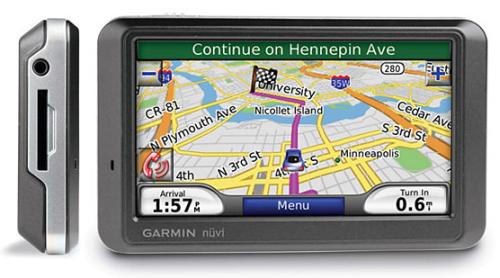
You're looking for the best GPS money can buy, so long as that money isn't going to break the bank. We've always been pleased with the Garmin nüvi line, especially the widescreen models with built-in Bluetooth and FM. The Garmin nuvi 760 has a 4.3" touch screen color backlit display, Bluetooth for hands-free calling and traffic broadcasts via "silent" FM data channel for intelligent routing based on traffic conditions.
So aside from the super easy to use intuitive interface and excellent performance in the Garmin nuvi line, what do we like best about this particular GPS? Once priced for $399 the nuvi 760 is currently on sale on Amazon for $199 - which is what we paid for a measley nuvi 250W only a year ago!
Saturday, April 25, 2009
Wrist Blood Pressure Monitor.

Product Description :
Blood Pressure is the pressure of circulating blood against the walls of the arteries. Your heart is like a pump. When it contracts, or beats, it sends a surge of blood through the blood vessels and pressure increases. This is called your systolic pressure. When your heart relaxes between beats, your blood pressure decreases. This is called your diastolic pressure. These two numbers provide important information about your health. When blood pressure is consistently above normal it is called hypertension (high blood pressure).
High blood pressure is a risk factor for heart and kidney diseases and stroke.This means that having high blood pressure increases your chance (or risk) of getting heart or kidney disease, or of having a stroke. This is serious business: heart disease is the number one killer in the United States, and stroke is the third most common cause of death.
About one in every four American adults has high blood pressure. High blood pressure is especially dangerous because it often gives no warning signs or symptoms. Fortunately, though, you can find out if you have high blood pressure by having your blood pressure checked regularly.
- Full automatic blood pressure monitor with cuff.
- Small size,light weight,easy for portable taking and using.
- Easy for operation with higher accuracy.
- Large screen with LCD display and windows design method.
- Automatically cut off for energy saving.
How Is Blood Pressure Tested?
Having your blood pressure tested is quick and easy. Blood pressure is measured in millimeters of mercury (mmHg) and recorded as two numbers systolic pressure "over" diastolic pressure. For example, the doctor or nurse might say "130 over 80" as a blood pressure reading.
Manual Blood Pressure Testing
Done at home with the familiar blood pressure cuff and a stethoscope. The digital Manual Inflation Monitors are the most affordable among the digital blood pressure monitors. This type of monitor requires the user to squeeze the inflation bulb to fill the cuff with air until you reach your correct inflation level. The cuff deflates automatically and your measurements appear on a clear digital display. If you have arthritis or any weakness in the hands you may find it difficult to inflate the cuff. For greater convenience choose an Automatic Inflation Blood Pressure Monitor
Automatic Blood Pressure Testing
Electronic digital readout monitors make it easy and convenient for individuals to test themselves. These devices perform the blood pressure test procedure automatically at the press of a button. This type of monitor inflates at the touch of a button. In seconds your blood pressure and pulse are alternately displayed. Wrist Blood Pressure Monitors give you the portability of a wristwatch style blood pressure monitor.
Tips for Taking Your Blood Pressure
Don't drink coffee or smoke cigarettes 30 minutes before having your blood pressure measured.
Before the test, sit for five minutes with your back supported and your feet flat on the ground. Rest your arm on a table at the level of your heart.
Wear short sleeves so your arm is exposed.
Go to the bathroom prior to the reading. A full bladder can change your blood pressure reading.
Get two readings, taken at least two minutes apart, and average the results.
Consistent monitoring of your blood pressure will keep you and your doctor informed of your progress to control it. Do-it-yourself testing provides immediate feedback at any time, which can be effective in recognizing dangerous blood pressure levels or the need for immediate medical attention. Healthy individuals can check their blood pressure periodically to monitor changes to safe levels. Use of a Blood Pressure Log to record you daily blood pressure readings is helpful.
Our Blood Pressure Monitor is compact and lightweight and easy to use even by yourself! Just use the velcro straps to easily secure it to your wrist and push the start button. In less than one minute you will have systolic blood pressure, diastolic blood pressure and your pulse rate. The display is large and easy to read.
Product Descriptions :
Model No SF822
Display system Digital display system/LCD 7 digits
Size L74mmxW74mmxH31mm
Measuring method Oscillometric method
Power source "AAA" batteries 1.5V*2
Weight about 140g
Pressure 0-280mmHg
Pulse 40-200 pulses/minute
Subscribe to:
Posts (Atom)


